PART 2: GETTING STARTED WITH LTL in Cabo®TMS

Priority1 has been an industry leader in LTL freight since 1995, offering shippers a premium LTL marketplace and unique pricing solutions for high-volume shippers. CaboTMS brings enterprise-grade shipping features and an easy-to-navigate interface together—empowering you to quote, book, and manage all your LTL shipments from one streamlined easy to use platform.

Cabo®TMS Benefits for LTL Shippers

  • Compare Quotes Across Hundreds of Premium Regional & Micro-Regional LTL Carriers Instantly! Get real-time, side-by-side quotes from a vetted network of carriers to find the best fit for your budget and timeline.
  • Book & Schedule Shipments in Advance.   Lock in the right carrier and preferred pickup times with just a few clicks, ensuring a smooth and efficient booking process.
  • Track Every Step
    Stay informed with end-to-end visibility and advanced custom reporting. Monitor each delivery from pickup to final drop-off.
  • Manage Variances
    Simplify carrier communications and quickly resolve variance disputes, helping you maintain smooth operations and reduce unexpected costs. Priority1 offers Free Freight Bill Auditing to all of our clients, allowing you an opportunity to quickly resolve variance disputes, helping you maintain smooth operations and reduce unexpected costs

Create Your LTL Quote

You can create LTL quotes for upcoming planned shipments or urgent deliveries. Simply enter your origin and destination ZIP codes, pallet count, freight class, and NMFC. Include any accessorial services needed at pickup or destination to get accurate, real-time rates.
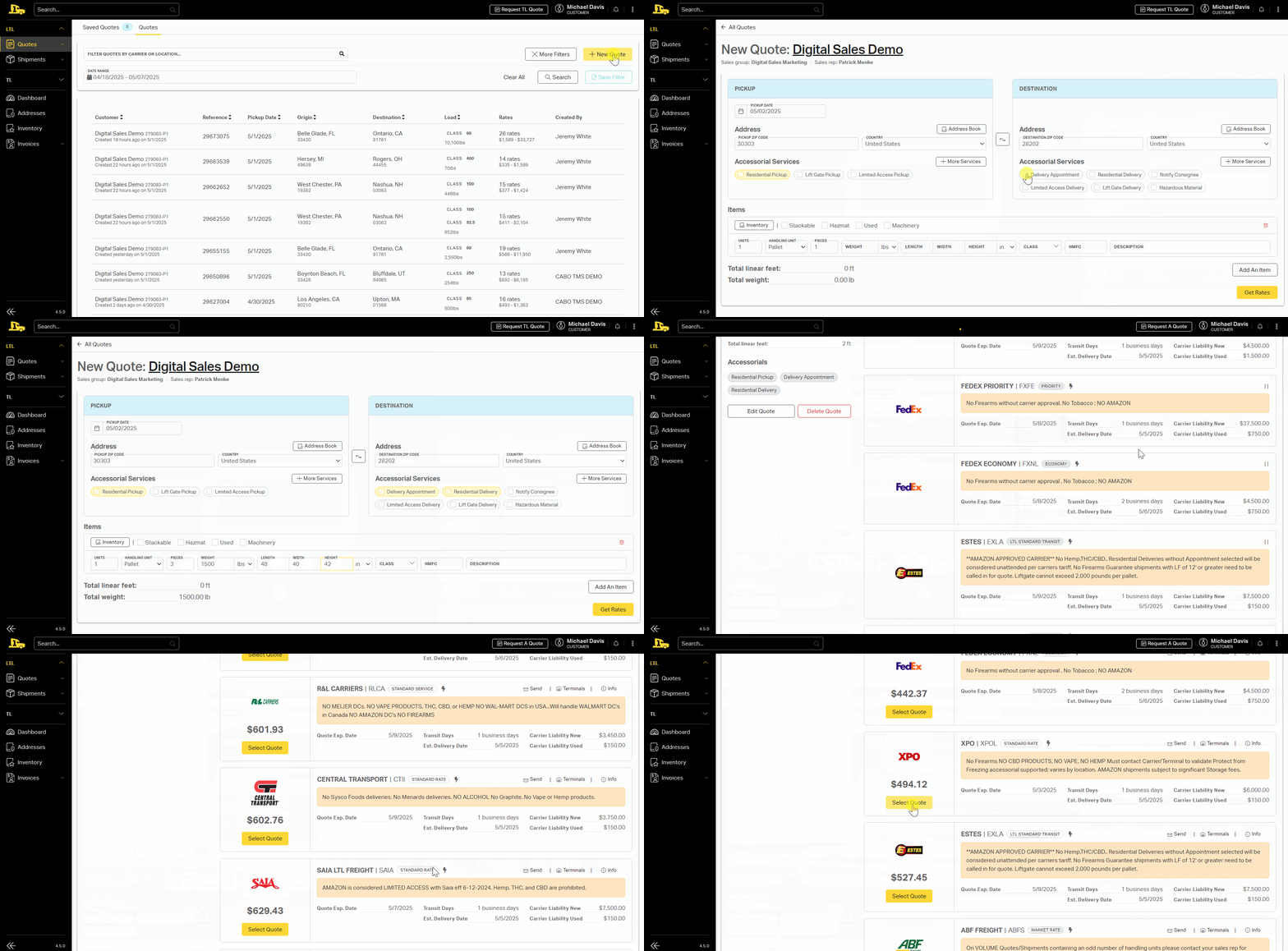
  • To Create Your LTL Quote

  • Navigate to LTL > Quotes > All Quotes
  • In your CaboTMS account, go to LTL in the top navigation, then select Quotes and click All Quotes.
  • Click + New Quote
  • Locate the yellow + New Quote button to enter your shipment details.
  • Review Past & Planned Quotes
  • Within the All Quotes interface, you can also see your past quote history and upcoming planned quotes.Enter Pickup & Destination Addresses
    In the main panel, type in the pickup and delivery addresses.
    Use the Address Book to quickly select common lanes and speed up data entry.
  • Origin & Destination ZIP Codes
    Enter your city or ZIP in the dropdown fields for both origin and destination.
  • Add Freight Item Details
    Indicate the number of shipping units (e.g., pallets, tubes, skids, drums).
    Include the weight (in lbs or kg) and dimensions (length, width, height) for each item.
    Weigh items on a scale to avoid additional fees for inaccurate weights.
  • Enter Class & NMFC
    Provide the freight class and NMFC. The system may auto-suggest a class based on item density and weight.
  • Get Rates
    Once all shipping details are complete, click Get Rates to generate your real-time carrier options.

Comparing Quotes & Booking

Quote Details Page
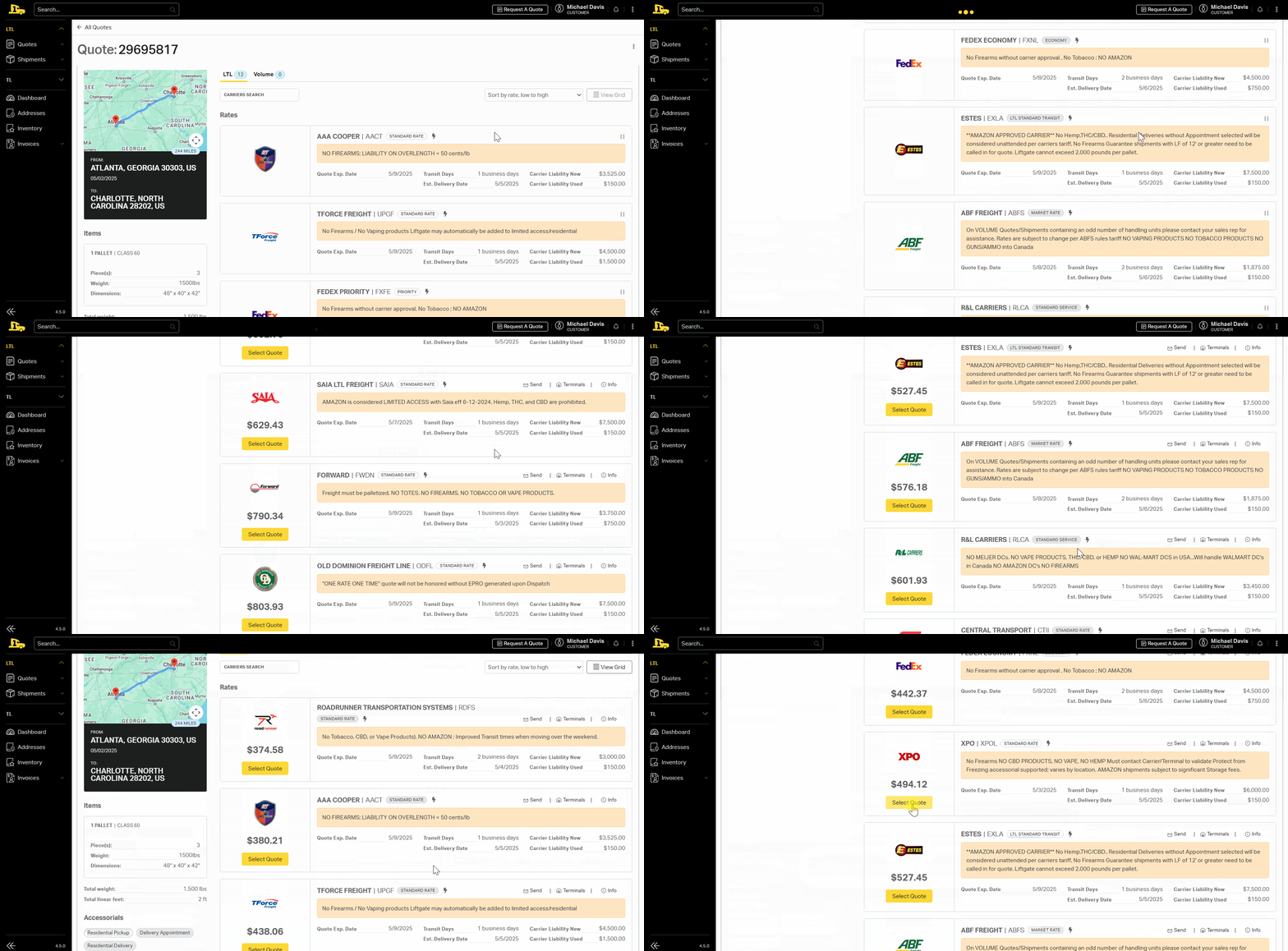
After selecting Get Rates, you’ll see a comprehensive list of LTL carriers you have enabled, with real-time rates based on your shipment details.

Toggle & Sort
Switch between LTL and Volume rates to compare pricing.
Sort quotes by rate (high to low), transit days, carrier liability, or by your favorites in the upper-right corner.

Select a Carrier
When you find a suitable option, click Select Quote to proceed with booking. You’ll then move on to finalizing pickup dates, reviewing carrier liabilities, and confirming payment.
Pickup & Delivery Details

Enter Pickup Date & Time Window
Select the Date you want the carrier to pick up your shipment.
Choose the Pickup Start and Pickup End times to let the carrier know your available window.

Add Pickup Location Information
Enter the Address/Company Name, Street Address, and City/State/ZIP for your pickup location.
Provide the Contact Information (phone number, contact name, email) to ensure the carrier has the correct point of contact.

Add Delivery Information
Select your Delivery Date and Delivery Time Window.
Enter the Address/Company Name, Street Address, and City/State/ZIP for your destination.
Include the Contact Information for the drop-off location as well.

View Estimated Transit Time
Click Show Details to see the estimated transit time in business days and pickup date estimate. This helps you plan delivery schedules and manage customer expectations.

When you’ve confirmed all pickup and delivery info, click Save & Continue to move on.

Items & Liability

Review/Confirm Shipment Items
Check that the Pieces, NMFC Code, and Item Descriptions accurately reflect the freight you’re shipping (for instance, pallets, boxes, etc.).

Verify the Weight and Dimensions to ensure they are correct—these details affect freight class and cost.

Carrier Liability & Insurance
Review the Carrier Liability amount shown for your shipment.

If you require additional coverage, enter the amount of Freight Insurance matching the value of your goods. (You can waive this insurance if it’s not needed.)

Once items and liability details look good, click Save & Continue to proceed.

Review & Ship

Finalize Shipment Details
Provide any additional Reference Numbers or notes you need on the BOL (Bill of Lading).
Check the Line Item breakdown of all charges to verify your total cost.

Complete Payment
Click Complete to confirm your quoted amount.
Checkout using either a saved card on file or by entering new credit card details. Once processed, your shipment will be scheduled.

Obtain & Review Documentation
The system will generate your BOL and any other relevant shipment documents.
Download or print them for your records and to provide the necessary paperwork to the carrier at pickup.

Following these steps ensures a smooth quoting and booking process for your LTL shipment—helping you confirm pickup/delivery info, properly classify your freight, confirm liability or insurance, and secure the final cost before shipping

Take The First Step To A Better Shipping Experience

By bringing together all your freight modes—LTL, FTL, and Expedited—into one easy-to-use system, you can optimize capacity, secure better rates, and gain complete visibility into every step of the process. Built by logistics professionals, CaboTMS streamlines your workflow, reduces manual data entry, and eliminates the need for juggling multiple systems or carrier websites.

If you have any questions or need additional guidance, connect with your Freight Specialist to get an account set up for your business—they’re ready to help you every step of the way!

Happy Shipping!

About CABOTMS

Skip the back-&-forth emails and calls—manage every load online with CaboTMS. Get instant quote comparisons, plan future shipments, & set custom tracking alerts in one dashboard. Direct carrier connections automate every LTL, FTL, and Expedited shipment, streamlining communications, BOL creation, and POD capture so your team can focus on growth—not paperwork. From standard LTL and full truckload to expedited, box trucks, partial truckload, open deck flatbed, goose neck, temperature-controlled, and expedited sprinters, CaboTMS keeps every mode under one roof.
Part 3: End-To-End Full Truckload (TL) Solutions

CaboTMS lets you quote, book, and track full truckload freight end-to-end from origin to destination. Below is a step-by-step overview. Now you can book a variety of trailer types to meet your needs, including open deck options such as 53′ trailers, 48-foot flatbeds, Conestoga, and Hotshots, as well as Dry Van, just as easily as your LTL freight. We understand the complexities and challenges of FTL shipping, from finding reliable carriers to managing costs and meeting tight timelines. Whether you’re navigating peak season demand or seeking flexible options to scale, Priority1 makes FTL shipping straightforward and stress-free. CaboTMS offers a self-service platform that allows you to quickly source and book FTL capacity. Get instant quotes, compare carrier pricing, and tender loads in just minutes. Select your preferred carrier and manage tracking, billing, payments, and invoicing all in one convenient location. Our expert support team is available 24/7 to assist you.

Key Benefits For Shippers Include:

  • Time-Saving:

Plan and book loads on your schedule—24/7, in just a few clicks

Better Capacity Management:
View LTL + FTL in one dashboard to keep trucks full and margins healthy

Multi-Modal Reach:
Quote Dry Van, Flatbed, Step-Deck, Conestoga, Goose-Neck, or request temperature-controlled service

International Shipping:
Manage cross-border logistics to Mexico and Canada with our teams on the ground to assist with customs and border control.

Real-Time Visibility:
Instant confirmations on pick up and delivery, live tracking, and auto-generated docs to keep everyone in sync

Step-by-Step: Quote, Book, Track Your TL Shipments in CaboTMS

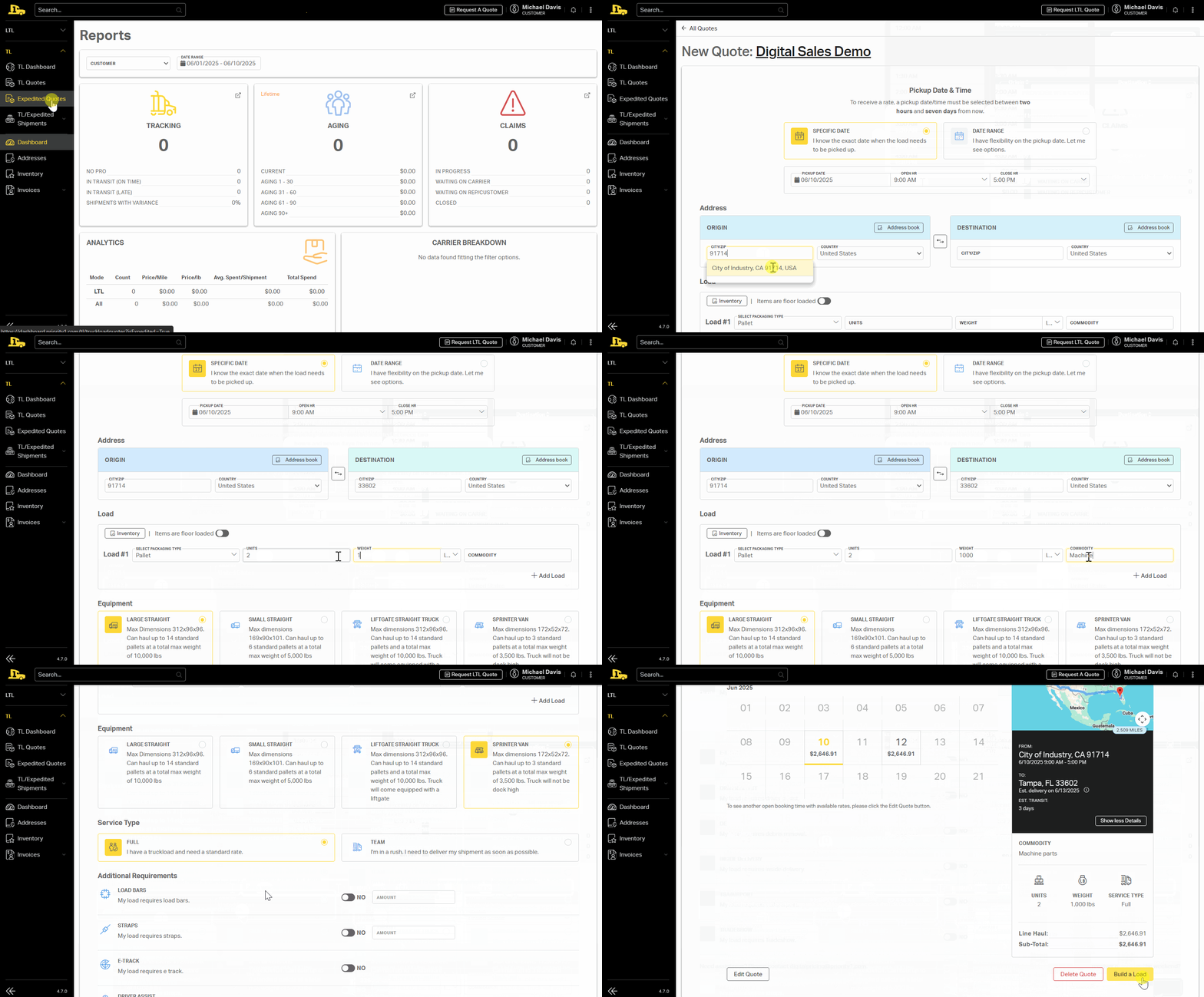
1. Start a New Quote

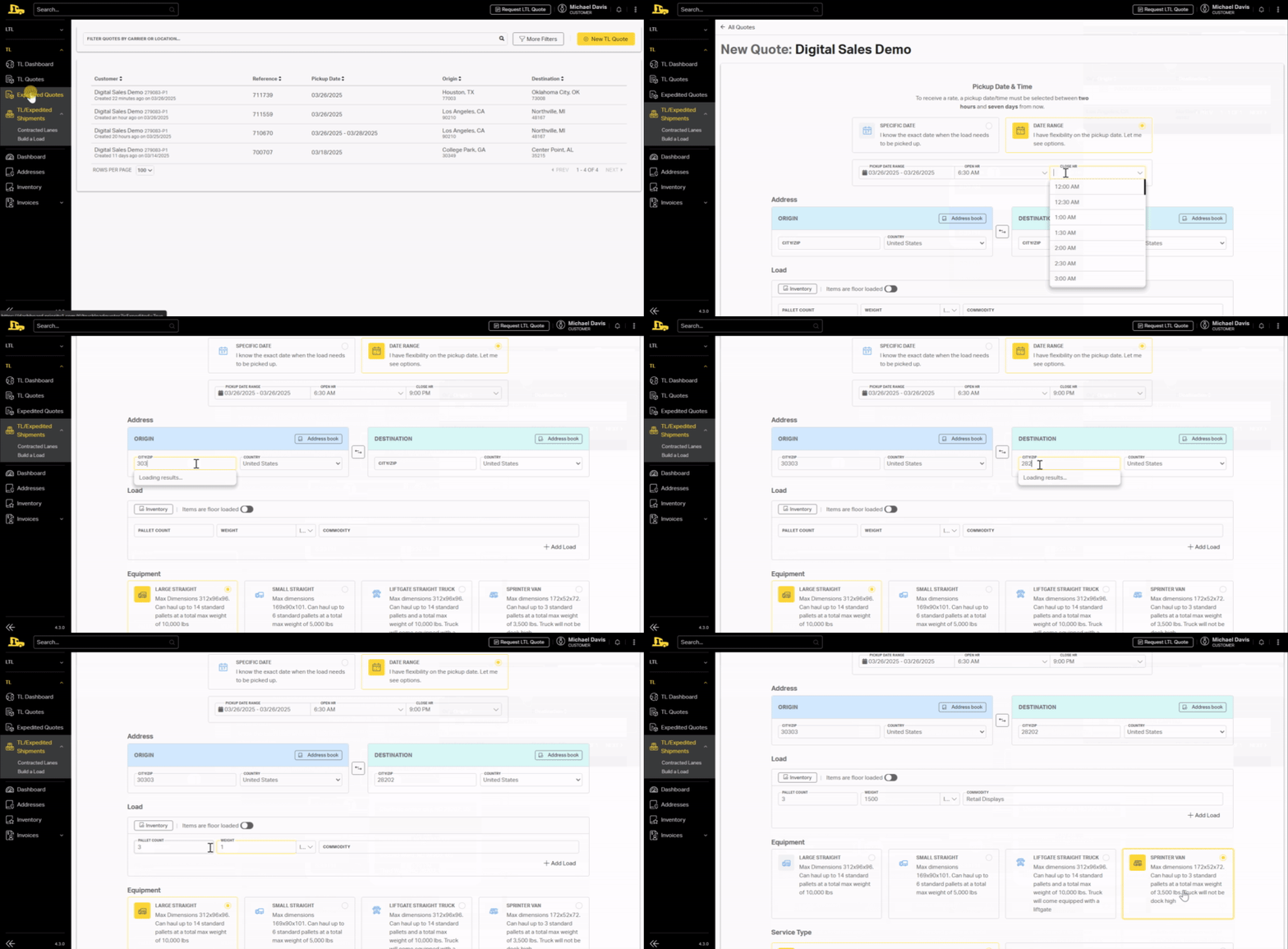
  1. In the left nav, choose TL › Quotes, then click + New TL Quote (yellow button).
  2. Enter Origin and Destination ZIPs—or pick saved locations from the Address Book.

    2. Set Pickup Date & Time

Choose “Specific Date.”

CaboTMS lets you quote loads scheduled two hours to seven days out.

Add an open and close window

3. Load Details

Field Action
Equipment Dry Van (default) • Open Deck • Refrigerated
Pallet Count 26 non-stackable or 52 stackable
Weight & Commodity Enter total lbs and a brief description

Need straps, load bars, or TSA? Toggle any Additional Requirements; charges recalculate automatically.

4. Get Rates & Compare

Click Get Rates to see live carrier options. Sort by costtransit time, or liability. Toggle Team service if you need the truck to run nonstop. Click Select Quote once you’ve found the best fit.

5. Build & Save the Load

  1. Pickup & Delivery profiles auto-populate from your quote; edit if needed.
  2. Review est. transit days (displayed top-right above the map).
  3. Add internal Reference Numbers or customer PO.
  4. Click Save Load—your shipment now lives in TL/Expedited › Shipments.

    6. Book & Track

On the load detail page:

Verify final line-haul + fuel charges.
Download the auto-generated BOL.
Track your truck in real time under the Tracking tab.
All docs (BOL, POD, carrier invoices) store under Documents for easy audit.

Pro Tips

  • Bulk repeat lanes: Build once, then Duplicate Quote for future pickups.
  • Mixed-mode dashboard: LTL, Volume, FTL, and Expedite visible in a single pane to spot consolidation opportunities.

Use these steps to take full control of your truckload moves—faster quotes, fewer emails, and total shipment visibility.

Happy shipping!

About CABOTMS

Skip the back-&-forth emails and calls—manage every load online with CaboTMS. Get instant quote comparisons, plan future shipments, & set custom tracking alerts in one dashboard. Direct carrier connections automate every LTL, FTL, and Expedited shipment, streamlining communications, BOL creation, and POD capture so your team can focus on growth—not paperwork. From standard LTL and full truckload to expedited, box trucks, partial truckload, open deck flatbed, goose neck, temperature-controlled, and expedited sprinters, CaboTMS keeps every mode under one roof.
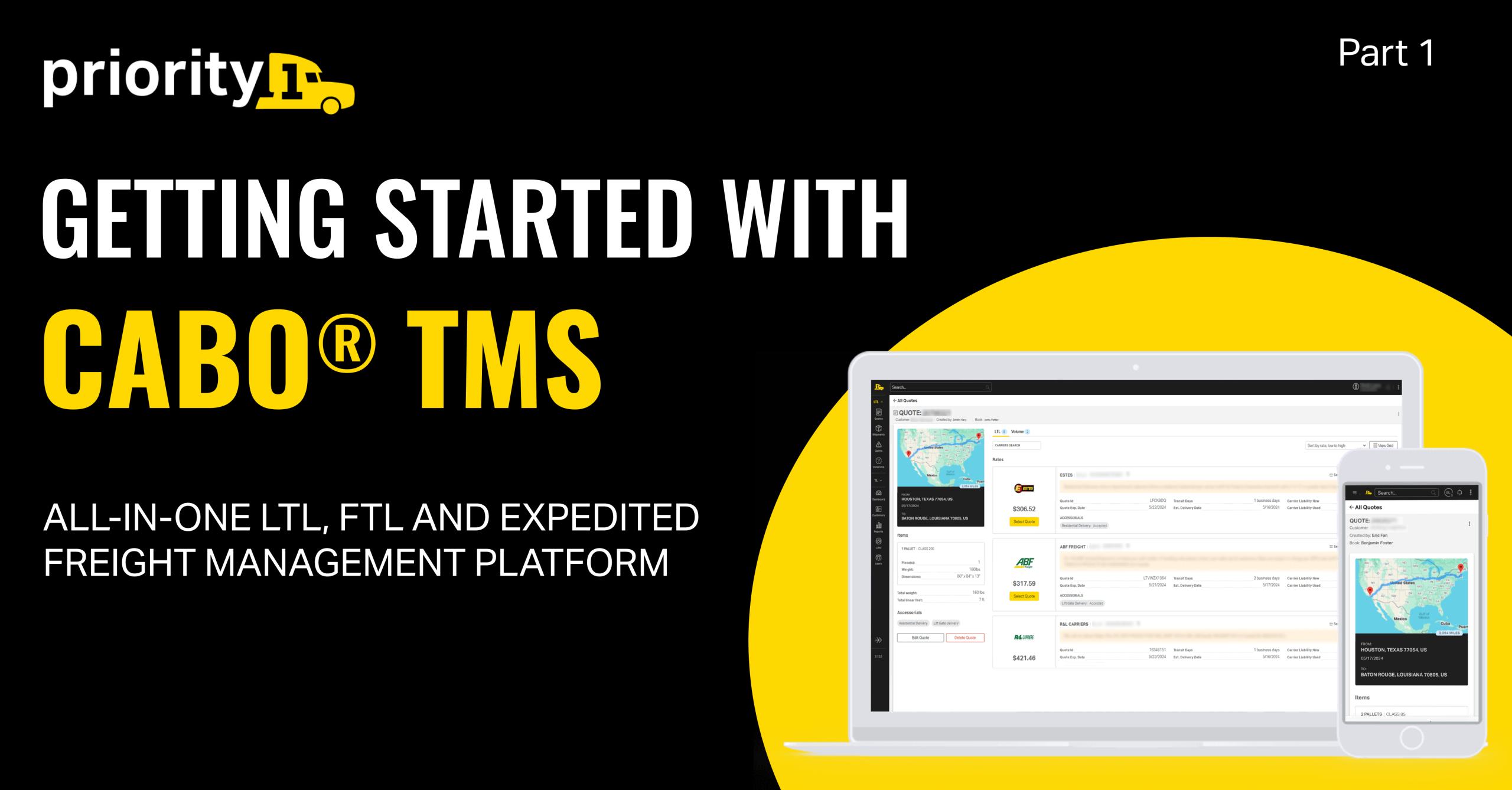
 

PART 1: GETTING STARTED WITH CABO TMS

More Value, Better Rates! Your All-In-One Solution for Planning, Measuring, and Optimizing LTL, FTL, and Expedited Freight

Our mission is to simplify your LTL, FTL, and Expedited freight operations with a multi-modal platform designed by freight experts for shippers and agent partners. Our goal? To help you save timesecure the better rates, and optimize capacity—all in one innovative platform that puts quoting, booking, and tracking right at your fingertips.

Add a Payment Method

  • Key Benefit: Securely store your credit or debit card for faster, more convenient booking.
  • Where to Go: From the main navigation, head to Invoices > Cards > Add Card to set up your preferred payment method.
  • Why It Matters: Storing your card details streamlines your booking process and simplifies billing—no more re-entering payment info.
  • Need Credit Terms? Reach out to your dedicated Freight Specialist to apply for flexible payment options.

Save Time! Add Frequently Shipped Items as Inventory

  • Key Benefit: Eliminate repetitive data entry by reusing item details for quick quotes.
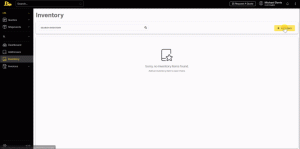
  • Where to Go: Access the Inventory section to input the items you ship most often—such as palletized goods or specialized freight.
  • What to Include: WeightNMFC numbersdimensions, and other critical specifications.
  • Why It Matters: With your inventory loaded, CaboTMS automatically populates shipment details during the quoting process, helping you move faster and avoid mistakes.

Store Common Lanes as Addresses

  • Key Benefit: Quickly select frequent origins and destinations without retyping details.
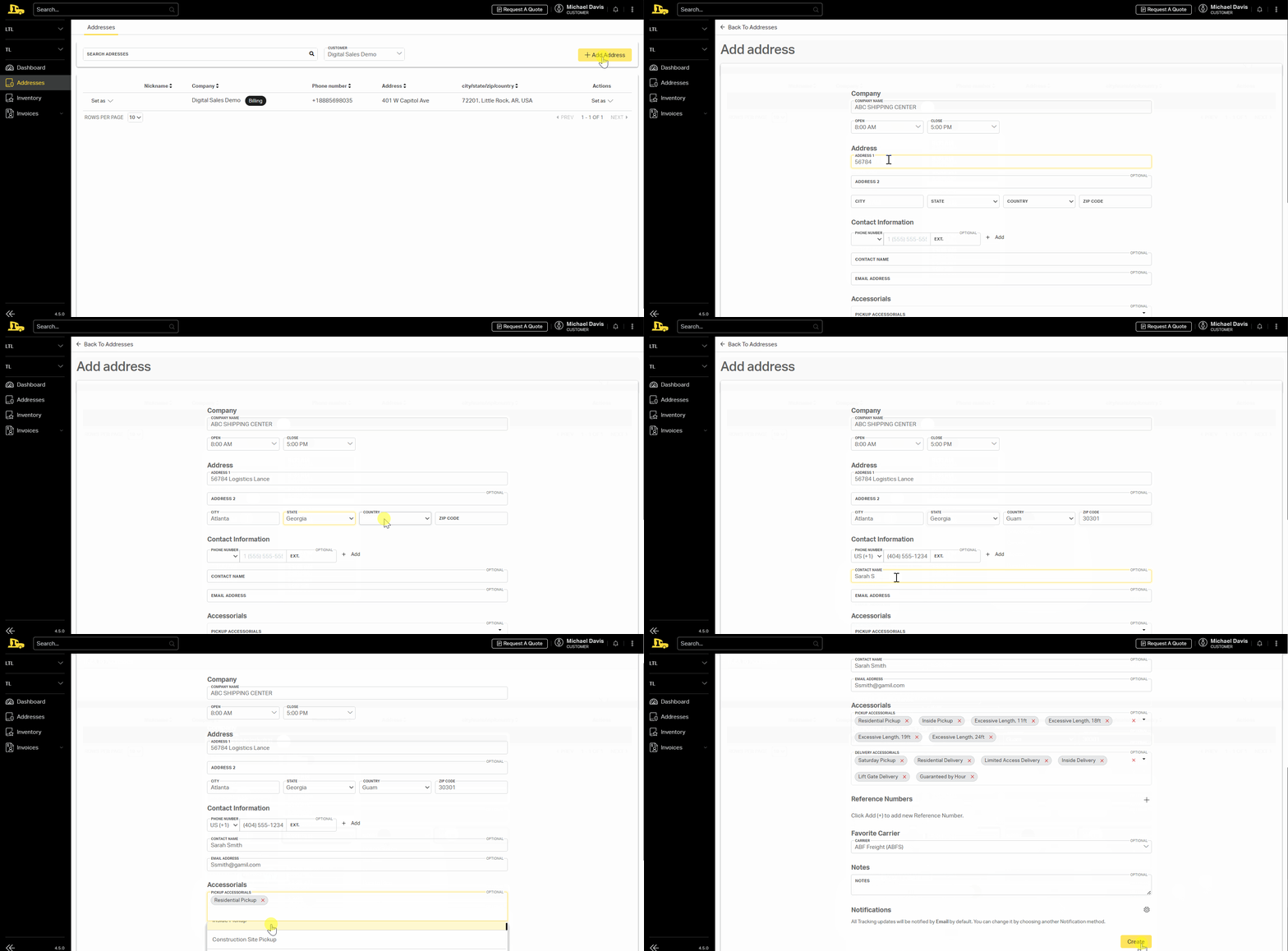
  • Where to Go: Add your warehouse and customer locations under Addresses (or your Address Book).
  • Why It Matters: Speed up quoting and reduce errors by having your most-used lanes ready to go—no more digging through spreadsheets or old emails.

All-in-One Multi-Modal Shipping! Book LTL, FTL and Expedited Freight

  • Key Benefit: Manage your freight in one place—optimize capacity, save time, reduce costs, and ensure timely shipments.
  • Where to Go: Select the LTL or FTL tab from the main menu to configure shipping settings and tracking preferences.
  • What to Do: Compare real-time LTL, FTL, and Expedited rates side-by-side to find your best option, then book and track everything in a single dashboard.

Take The First Step To A Better Shipping Experience

By bringing together all your freight modes—LTL, FTL, and Expedited—into one easy-to-use system, you can optimize capacity, secure better rates, and gain complete visibility into every step of the process. Built by logistics professionals, CaboTMS streamlines your workflow, reduces manual data entry, and eliminates the need for juggling multiple systems or carrier websites.

If you have any questions or need additional guidance, connect with your Freight Specialist to get an account set up for your business—they’re ready to help you every step of the way!

Happy Shipping!

About CABOTMS

Skip the back-&-forth emails and calls—manage every load online with CaboTMS. Get instant quote comparisons, plan future shipments, & set custom tracking alerts in one dashboard. Direct carrier connections automate every LTL, FTL, and Expedited shipment, streamlining communications, BOL creation, and POD capture so your team can focus on growth—not paperwork. From standard LTL and full truckload to expedited, box trucks, partial truckload, open deck flatbed, goose neck, temperature-controlled, and expedited sprinters, CaboTMS keeps every mode under one roof.
Logo

Subscribe to our

Freight Topics Newsletter